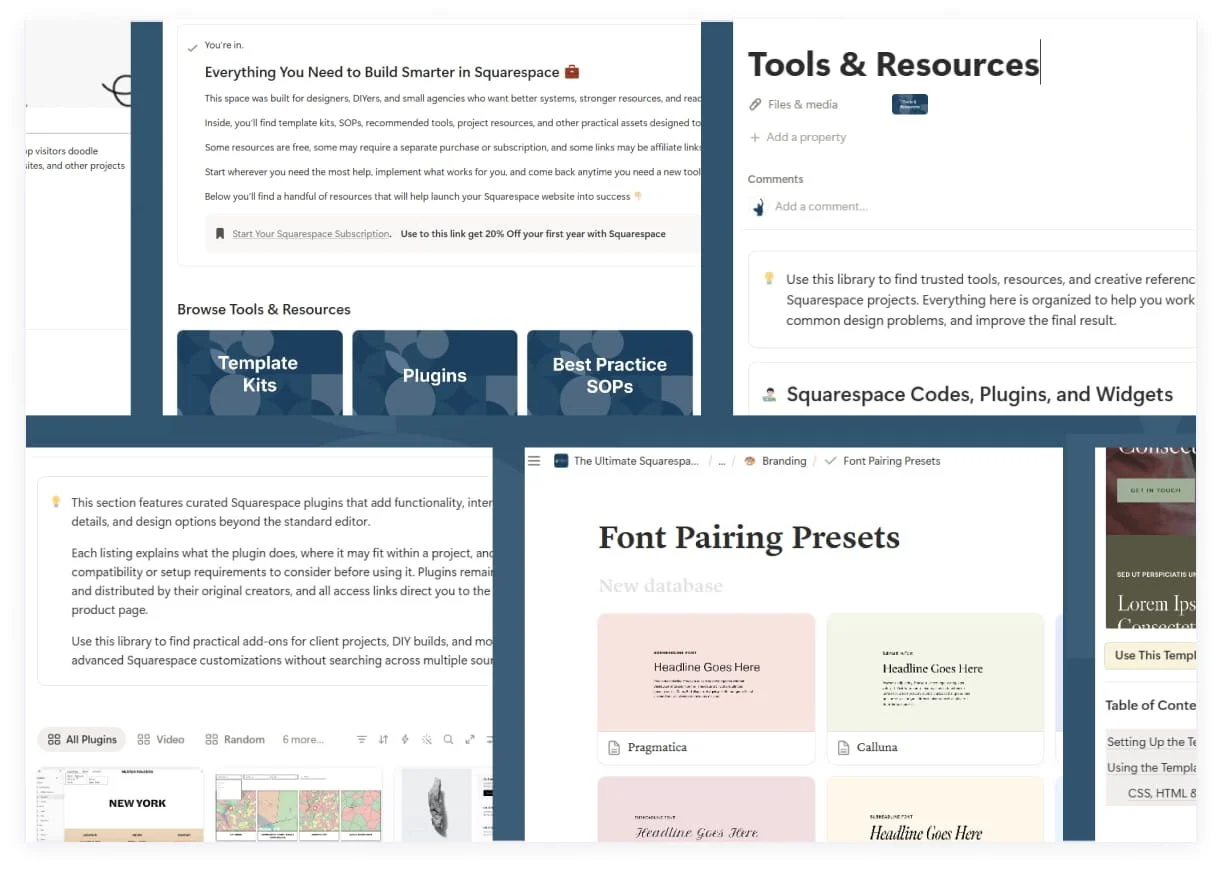
The Ultimate Squarespace Resource Hub is a free library I built in Notion for anyone who builds websites on Squarespace. It holds the template kits, client documents, branding tools, and step-by-step guides I use on my own client projects, all in one place. It's for DIYers, new freelance designers, and small agencies who want better systems without spending hours hunting for them.
I'm Desmond Haskell, co-founder of Haskell Digital Services, a Maine web design studio. Since 2020 we've completed more than 100 websites across more than 30 industries. This hub is the list I wish someone had handed me when I started.
Disclosure: Haskell Digital Services earns referral or partner credit from Squarespace. Some other links inside the hub are also affiliate or referral links. If you buy through one, I may earn a commission at no extra cost to you.
Key Takeaways
The Resource Hub is free and lives in Notion. It has five sections: Business and Client Systems, Template Kits, Branding, Best Practice SOPs, and Tools and Resources.
The template kits are free Squarespace design systems with 10+ pre-designed pages and 50+ reusable sections. In my own builds, starting from a kit saves about 10 to 15 hours of design time.
Each kit comes with a six-month Squarespace trial and 20% off the first payment of an annual plan.
The client systems cover a whole project, from the first discovery call to the final handoff, including 13 ready-to-edit Gmail templates.
New kits and guides are on the way, and I'm open to feedback from the people using the hub.
Why I built a free Squarespace resource hub
I didn't go to school for web design. In 2020, early in the pandemic, I took Google's UX design certification course and started building websites for local businesses to grow a portfolio. That freelance work slowly turned into Haskell Digital Services, which my wife Siena and I run together. Today our work ranges from small-business sites to larger projects like EvanTell's migration from WordPress to Squarespace.
Most of what I know, I learned on the job. I said yes to almost every project. I spent hours in Squarespace forums, followed other designers, and tried every tool I could find. Every new client meant figuring out the process again: how to run a discovery call, what to put in a proposal, how to keep a project on schedule, and how to hand off a finished site.
What I wanted back then was a cheat sheet. One place with everything I needed, in order, from starting the business to launching the first client site. So I built it, and I'm giving it away.
What's inside the hub
The hub has five sections. Start with whichever one you need most.
Business and client systems
These resources cover the business side of building websites. They're PDFs and guides you can download, rebrand, and adapt to your own process:
Getting Started Checklist: the setup steps for a new Squarespace design business, with links for starting your website and forming an LLC
Discovery Call Guide: questions to ask before you quote a project
Website Project Proposal Template: a starting point for scope, timeline, and pricing
Client Onboarding Form: gathers the content, files, and details you need to start
Website Project Timeline Checklist: keeps each stage of a build on track
Gmail Templates for Your Website Client Workflow: 13 emails in the order a project usually runs, from "Your proposal is ready" through launch day, a review request, and a referral follow-up. It also shows how to turn on and save templates in Gmail.
Client Offboarding Checklist: what to hand over when the site is finished
The documents are thorough on purpose. You don't have to use them word for word. Take the parts that fit your business and build your own branded versions.
Template kits
The template kits are the biggest part of the hub, and they're free. Each kit is a Squarespace design system: a set of pre-designed pages plus a library of matching sections you can mix and match.
Each kit includes:
10+ pre-designed pages, including the core pages most sites need
50+ flexible sections, sorted by type, such as hero banners, FAQs, stats, and text-and-image layouts
A step-by-step setup guide, called an SOP (standard operating procedure)
A six-month Squarespace trial, which I can offer as a Squarespace Circle Gold Partner. Circle is Squarespace's free program for designers who build on its platform, and Gold Partners can offer six-month trials. The standard trial is 14 days, according to Squarespace's pricing page.
20% off the first payment of an annual Squarespace plan
Free installation, delivered to your Squarespace account within 24 hours of your request
The kits are built for Squarespace 7.1 using Fluid Engine, the drag-and-drop editor Squarespace uses for 7.1 sites. I use them on my own client sites, so they've been tested on real projects.
Building with a kit works like this. You set up your site styles first: your fonts, colors, and buttons. Then you open the Mix & Match Sections pages, save the sections you want, and add them to your own pages. The sections already match each other and are set up for phones, so you aren't styling and re-spacing the same layout over and over. You still get to design. You're just starting much further ahead. In my own builds, that saves about 10 to 15 hours compared with building from scratch.
There are two kits in the hub right now, Squarespace (SS) Template Kit 1 and SS Template Kit 2. Each has a live demo site you can view from the hub, and more kits are coming as I build them for my own business.
How to get a template kit
Open the Resource Hub and go to the Template Kits section.
Choose a kit and look through its demo site.
Fill out the request form on the kit's page. Use the email address you use, or plan to use, for Squarespace.
Within 24 hours, watch for an email invitation from Squarespace, and accept it.
Open the kit from your Squarespace dashboard and follow its setup guide, starting with your site styles.
A few things to know before you request one:
You'll need the Core plan or higher when you launch. The kits use code injection, a way to add custom code across a site. Squarespace's pricing page lists code injection as not included on the Basic plan.
One kit is for one website. You can use a kit for your own site or for a client's site, and you can hand that finished site over to the client. Each additional website needs its own copy. The full license terms are in the hub.
Template kit vs. a regular template
| Template kit | Regular Squarespace template | |
|---|---|---|
| Pre-designed pages | 10+, including core pages | Usually a few core pages, like Home, About, and Contact |
| Ready-made sections | 50+, already styled to match the kit | Squarespace's built-in section layouts, which you restyle to match |
| Adding a new page | Save a finished section and drop it in | Pick a layout, then restyle and re-space it |
| Phone layouts | Sections already adjusted for mobile | Check and adjust each new section |
| Setup guide | Step-by-step SOP included | General Squarespace help articles |
| Squarespace trial | Six months | 14 days |
| Cost | Free | Free from Squarespace; outside templates are often paid |
Branding resources
The branding resources help you build a clear, consistent look for a site quickly, without worrying about whether you're allowed to use what you find. They include:
Typography: my Font Pairing Presets and my Favorite Squarespace Fonts list, plus Fontjoy for testing pairings and Google Fonts for free web fonts
Color tools: Coolors Tailwind, Coolors Image Picker, Colormind Bootstrap, Canva Color Palettes, and MyColor
Free image libraries: Unsplash, Pexels, and Pixabay, plus Magnific for premium options
Image compression tools: FreeConvert, Image Resizer, and Image Compressor, to keep pages loading quickly
Free icon libraries: Google Icons and Feather Icons
Here's one way I use these on a real build. In my kit setup guide, I enter the brand's main color into Coolors Tailwind. Then I use its lightest shade (50) for light backgrounds and a dark shade (800) for dark sections. That gives a full Squarespace color palette in a few minutes.
Before you use any font or image, check its license. Many free fonts use the SIL Open Font License, which allows use in client and commercial projects.
Best practice SOPs
An SOP is a written, step-by-step process you can follow the same way every time. The hub currently has:
Search engine optimization (SEO): a Squarespace SEO and Site Checklist, a guide to page titles and descriptions, and a guide to image SEO
AI prompts: how to set up a ChatGPT project for a website, and how to use ChatGPT to write website copy
If a client wants thorough SEO work, you can follow the checklists by hand and know nothing got skipped. I'm also writing new guides, including workflows I now use with Claude, another AI assistant.
Tools and resources
These are platforms and tools I've come to trust along the way:
Squarespace code, plugins, and widgets: Ghost Plugins, Elfsight, Will Myers, Square Refresh, Inside the Square, and Beatriz Caraballo's blog
AI-optimized blog writing: Canopy SEO
Project management: Notion
Accessibility: Colour Contrast Checker, to make sure text is easy to read against its background
Payment processing: Stripe
Video calls: Google Meet
Who the hub is for
DIYers and small business owners. If you're building your own Squarespace website, a template kit and the launch checklists can get you to a professional result without learning everything first. Once it's live, you can manage it yourself.
New freelance designers. You don't have to be an expert on the platform or in business to give your first client a high-quality website. The client systems walk you through each step, from the discovery call to the handoff.
Small agencies. If your team includes people who are still learning, the SOPs and email templates give everyone the same process to follow.
What's free, and what isn't
The hub itself is free, and so are the template kits, PDFs, guides, and SOPs. Most of the tools it links to are free too, or have a free version.
A few are paid. Squarespace needs a paid plan once a site goes live. Some plugin libraries, such as Ghost Plugins and Will Myers, sell premium plugins next to their free ones. Those are optional. The hub is there to connect you with good tools and get you started, not to sell you add-ons.
Frequently asked questions
Is the Ultimate Squarespace Resource Hub really free?
Yes. The hub, the template kits, and the downloadable guides are free. Some tools it links to offer paid plans or premium add-ons, and you'll need a paid Squarespace plan to publish a website.
Do I need a Squarespace account to use a template kit?
Yes. When your kit is ready, you'll get an email invitation from Squarespace. If you don't have an account yet, you can create one when you accept it.
Can I use a template kit for a client's website?
Yes. Each kit copy covers one live website, either your own or a client's. You can transfer the finished site to the client. Each additional website needs its own copy.
Help me make the hub better
The hub will keep growing. If you use it, I'd like to hear what's working, what's missing, and what would help you most. Send your thoughts through the Resource Hub feedback form.
And if you know someone who could use these resources, send the hub their way. Good Squarespace resources should be easy to find.